A desktop app for applying Apollo save patches to console save data on your computer. It runs on Windows, macOS and Linux.
This guide covers using the app. If you want to know why something works the way it does, or you are working on the code, start at the README instead.
Contents
- What it does, and what it changes
- Installing it
- Patching a save, start to finish
- The saves list
- The patcher screen
- PSP and PS3: the console's own encryption
- PS1 and PS2: saves in a .PSV container
- Settings
- Moving a save to another console or account
- Driving files by hand
- When something goes wrong
- Where saves come from
- Version, and reporting a problem
What it does, and what it changes
You point it at a folder of console saves. It lists what it finds, works out which game each save belongs to, and looks up that game in a patch database bundled inside the app. You tick the codes you want and press Apply selected.
It writes to your save file. That is the whole point of it, but it is worth being clear about:
- The file that gets modified is the target — one file inside the save, named at the top of the patcher screen. Nothing else in the folder is touched.
- A backup is written first, to
<target>.bak, unless you turn that off in Settings. For a PS1 or PS2 save the backup is of the whole.PSVcontainer. - For a PSP or PS3 save, the console's own encryption is taken off before the codes run and put back afterwards. The file you end up with is one the console can still read.
- Nothing leaves your machine. There is no network access at all — the patch database, the game-key databases and the game-name catalogue are all bundled in the download.
What it supports, per console
| finds your saves | patches them | shows the icon | console encryption | |
|---|---|---|---|---|
| PS1 | inside a .PSV | yes¹ | drawn from the save | none — the console had none |
| PS2 | inside a .PSV | yes | rendered, animated | none |
| PSP | yes | yes | yes | handled for you |
| PS3 | yes | yes | yes | handled for you |
| PS4 | yes | yes | yes | none — these are already decrypted |
| Vita | yes | yes | yes | none |
¹ With one restriction: a PS1 save cannot change size. See PS1 and PS2.
The app does not get saves off a console for you, and it cannot decrypt a PS4 or Vita save that is still in the console's own format — those arrive already decrypted by the console-side Apollo app. See Where saves come from.
Installing it
Download the installer for your platform:
| download | then | |
|---|---|---|
| Windows | ApolloSavePatcher-<version>-windows-x64-setup.exe, or -x86-setup.exe | Run it. Take the 32-bit (x86) one if your CPU is older than about 2011 — see troubleshooting. It adds a Start menu entry and opens .savepatch files on a double-click. Leave Software OpenGL renderer unticked unless you are on Remote Desktop or in a virtual machine |
| macOS | ApolloSavePatcher-<version>-macOS.dmg | Open it and drag Apollo Save Patcher into Applications. macOS 11 or later, Intel or Apple Silicon |
| Linux | ApolloSavePatcher-<version>-linux-x86_64.AppImage | Make it executable (chmod +x, or the file's Properties) and run it. Needs a dialog helper for the file pickers: zenity, kdialog, matedialog or qarma. Install whichever your desktop already uses |
Uninstalling is the usual way for each: Apps in Windows Settings, dragging the app to the Bin on macOS, deleting the AppImage on Linux. Your settings are kept in your own user folder (see where settings are kept) and are not removed with it.
The first time you open it
The installers are not signed, so both Windows and macOS warn about them once.
- Windows shows Windows protected your PC. Choose More info, then Run anyway.
- macOS says it cannot verify the app. Open System Settings ▸ Privacy & Security, scroll down to the message about Apollo Save Patcher, and press Open Anyway. On macOS 14 and earlier, right-clicking the app and choosing Open does the same.
After that it opens like any other app.
If you have the plain build instead
The builds are also available as plain folders with no installer. Unpack one anywhere and run the executable inside it, but keep the folder together. The app looks beside itself for the patch database (apollo-patches.zip) and the font. If you move only the executable, you get no codes and the wrong typeface.
First run
The saves screen opens empty and tells you what to do. Press Choose folder... and point it at wherever your saves are — a memory stick, a folder you pulled off a PS3's hard drive, a USB stick of PS4 exports. It searches everything underneath, so pointing it at the top of the stick is fine.
That folder is remembered, and re-scanned in the background next time you open the app.
Patching a save, start to finish
- Point it at your saves. Choose folder... on the saves screen, or File ▸ Saves (Ctrl+B) if you are somewhere else. Everything underneath turns up in the list, by game.
- Pick the save. Click the row. The app switches to the patcher screen with the game identified, the target file chosen, the byte order set, and — if the database has codes for that game — the patch already loaded.
If the Codes column is empty for your game, the database has nothing for it. See my game has no codes.
- Tick the codes you want. Select all and Select none are there if the list is long, with a count of what is currently selected beside them. Press View on a row to read what a code actually does before running it.
Some codes ask a question — a character slot, a difficulty, a profile. Those show a dropdown, and Apply stays disabled until every one is answered. An unanswered dropdown is marked (required) in red.
- Press Apply selected. The log panel at the bottom records each code as it runs, and says which byte order was used.
- Read the log. It will tell you what was applied, whether a backup was written, and — for PSP and PS3 — that the console's encryption came off and went back on. If anything failed, it says so and names the file's actual state rather than a generic error.
Then put the save back on your console or memory card the same way you got it off.
The saves list
Press File ▸ Saves (Ctrl+B) to get here from anywhere.
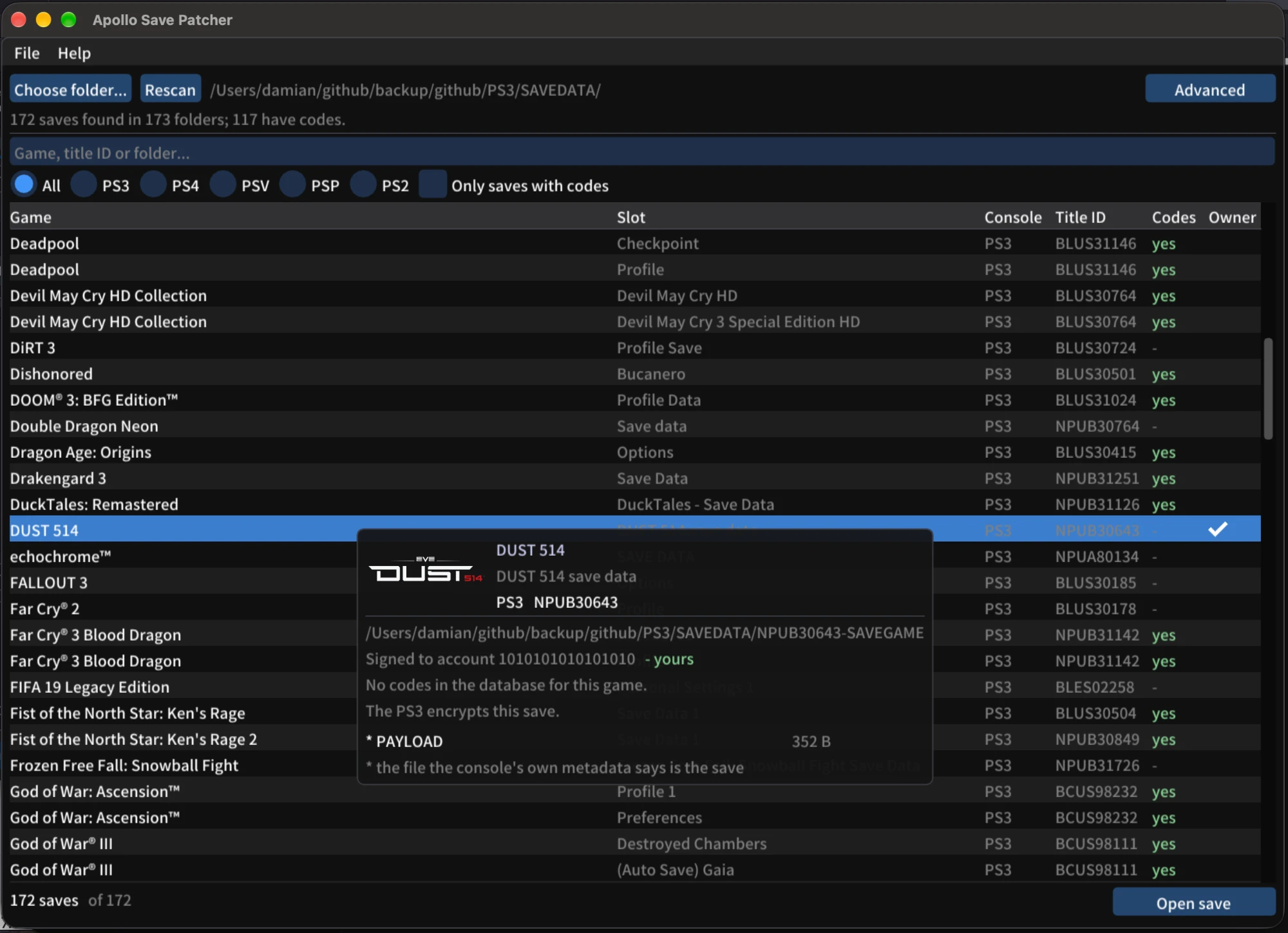
What counts as a save
For four of the six consoles a save is a folder with the console's metadata file inside it. For PS1 and PS2 it is a single .PSV file, because those consoles kept saves in memory-card blocks and never wrote files at all.
You do not have to know which is which — the scan looks for both.
The columns
| column | |
|---|---|
| Game | The game's real name, with its icon beside it |
| Slot | Which save it is, when the game keeps several |
| Console | PS1, PS2, PSP, PS3, PS4 or PSV (the Vita) |
| Title ID | The nine-character code the console files the game under |
| Codes | How many patches the bundled database has for this game |
| Owner | Whose PSN account the save is signed to. Only appears once you have entered your own account ID in Settings — a tick means it is yours |
Hover a row for a panel with a larger icon and more detail, including which account the save names.
Only saves with codes filters out everything the database cannot help with.
If your save is not on this machine yet
Find a game... (Ctrl+F) searches the patch database directly, by game name or title ID, instead of starting from a save. Useful when you want to see what codes exist before going and fetching the save.
What the scan does not do
- It goes eight folders deep and stops at 40,000 folders. Both are generous — a PS3's savedata sits five levels down — but if either limit is reached the app says so rather than quietly showing you a short list.
- It does not follow symlinks, which would otherwise list the same saves several times.
- It skips DLC and game data, which on a Vita look almost exactly like saves.
- It runs in the background, with a Stop button. Pointing it at your entire home folder will not freeze the app.
Press Rescan after adding or removing saves.
The patcher screen
Press File ▸ Patcher (Ctrl+P), or pick a save from the list. < Saves goes back, and going back closes nothing — the patch stays open, so you can look at the list and return.
The save header
The game's name, its icon, the console and the title ID.
Hover the icon to see it larger. For a PS2 save that means the actual 3D model the console showed, turning on its axis the way the dashboard spun it — which is the closest this gets to what the save looked like on a television.
Every PS2 icon turns. Only some also change shape: most are a single model, and the turn is what shows them to be models at all rather than flat pictures.
The target file — which file gets patched
A save is a folder (or a container) holding several files, and a patch addresses one of them. The File dropdown picks it, with sizes listed, and the right one is already starred.
For a PSP or PS3 save that star is not a guess: the console's own metadata says which files it wrapped, and that is the same list that answers "which file comes out as garbage if you patch it as-is". For PS4 and Vita saves the largest file is used, which is almost always right — their saves are one big file plus occasionally a small index.
The patch itself gets the last word. If the loaded patch names exactly one target file, that file is in this save, and it is not the one currently selected, the app moves to it and says so in the log. A file you picked by hand is left alone.
Console metadata and artwork — PARAM.SFO, PARAM.PFD, ICON0.PNG and the rest — are left out of the dropdown entirely. None of it is ever the target.
The code list
Each row is one code: a checkbox, its name, and a tag saying which interpreter runs it (SW for Save Wizard, BSD, PY for Python — the same legend is under the Help menu).
View opens the code's body, and it is editable. Save changes replaces what the engine will run; Revert to file puts the patch's own text back; a * on the row means the two differ. Edits live in the session only — the .savepatch on disk is never rewritten unless you explicitly save it.
Runs as, in the same window, changes which interpreter is used. This matters more than it sounds: without an explicit marker the type is guessed from the shape of the code, so a single mistyped line can land a code on the wrong interpreter and make it fail. This is how you correct that.
View / edit data
Opens the target file in a hex editor. It works on a copy in memory and writes back only when you press Write changes, so a mistyped byte costs nothing until then — and a .bak is kept first, the same as patching. The view is re-read each time you open it, since applying codes rewrites the file underneath.
View patch file shows the whole .savepatch as text, including the author comments, credits and notes that the code list does not show.
PSP and PS3: the console's own encryption
A save copied straight off a PSP Memory Stick or a PS3 hard drive is encrypted twice: the console wraps it with a key of its own, and the game encrypts what is inside that. Every Apollo patch addresses only the inner layer.
So the console's wrapper has to come off first. Feed a raw save to the patch engine and it returns noise that looks like a result.
You do not have to do any of this by hand. Choose a target, and if the console's metadata sits beside it and names that file, a PSP save or PS3 save section appears with everything filled in already.
| PSP | PS3 | |
|---|---|---|
| metadata file | PARAM.SFO | PARAM.PFD |
| the key | per game | per file |
| where the key comes from | bundled database | bundled database |
The controls
- Unwrap the console's encryption before patching, and put it back after — the checkbox, and the main event. Leave it on. Apply then takes the layer off, runs the codes, puts it back, and updates the metadata with the file's new hash. The order is not negotiable: wrapping first would encrypt the ciphertext.
- Decrypt only — for opening a save in the hex editor, or for handing a plain file to some other tool. It turns the checkbox off, so a file that is already plaintext does not get unwrapped twice.
- Re-encrypt — puts the layer back on a file that is already decrypted. This is what repairs a save left half-done by a failed run.
- Resign PARAM.PFD / Resign PARAM.SFO — regenerates the metadata's own hashes alone, leaving every file as it is. Needs no key.
- Decrypt all files / Re-encrypt all files — the same thing for every file the console wrapped, not just the target. A save often holds several, and this saves re-picking the target for each one.
It is not all-or-nothing: each file is independent, so one that is missing from the folder or has no key in the database is reported and skipped rather than stopping the rest. The log names every file either way, and the last line says how many of how many came through.
On the PS3 one thing differs — the key is per file, not per game, so a save can have keys for some of its files and not others. PARAM.SFO is listed in every PARAM.PFD but never encrypted, so it is left alone.
If the app has no key for your game
The buttons and the checkbox stay disabled rather than handing you noise. For a game the bundled database does not cover, type the key in by hand — 32 hex digits — or, on the PSP, press Load key file... and give it a dumper's output (SGKeyDumper's 16 bytes, or SGDeemer's 1536).
The PS3 hash check
PARAM.PFD records a hash of every file it protects, so the app can tell you whether the file you are about to patch is still the one the console wrote. If they disagree the section says so — worth knowing, because patching would sign the damage into place.
It is only checked when the file is still the length the console left it. A save you already decrypted cannot match, and flagging that would be crying wolf.
PS1 and PS2: saves in a .PSV container
Neither console encrypted saves, and neither wrote files. A PS1 or PS2 save lived in blocks on a memory card, and it becomes a file only when something exports it as a .PSV — a signed container, originally the PS3's own export format, holding the save's whole memory-card directory. A PS3 writes them, and so do apollo-ps2 on the console itself and ps2vmc-tool on a virtual memory card.
That is the form these saves reach a computer in, and the app reads and writes it directly:
.PSVfiles are listed alongside everything else in the saves list, with the game named from the container's own title ID.- The File dropdown lists what is inside the container, with sizes, exactly as it lists a folder's files. Picking one extracts it behind the scenes.
- Applying puts the patched file back and re-signs the container. A PS3 checks that signature on import, and a save that fails it looks corrupt rather than merely unsigned.
Everything else on the patcher screen works the same way. You do not need to unpack anything.
A PS1 save cannot change size
A PS1 save occupies whole memory-card blocks and the container stores it as one. A code that made the data longer or shorter would produce something a PS3 refuses to import, so such a code is refused, with that reason, rather than written back.
PS2 saves have a real file table inside the container and may change size freely.
The icons
These saves carry no picture file, so the app draws one: a PS1 save's 16×16 palette icon, or a PS2 save's textured 3D model, lit and animated the way the console showed it.
If a save's icon is damaged the app says so, in colour, on the patcher screen and in the list's hover panel. It does not draw a partial one. This matters: the damaged icons found in the wild are truncated files, and whatever truncated the icon had no reason to stop there. Treat it as a warning about the save, not just about the picture.
Patch coverage is thin here
Not a limitation of the app but of the database, which has only a handful of PS1 and PS2 patches so far. Browsing, identifying, icons, editing by hand and re-signing all work for every save regardless.
Settings
Open it with File ▸ Settings… — everything in it is optional, and every default is the safe one.
It is laid out in tabs: General for the things that are not tied to one console, then PSP, PS3 and PS4 for each console's own identity. Fill in only the tab for the machine a save is going to. A tab whose field is half-typed is marked with a ! so the warning at the foot of the window is never about something you cannot see.
(There is no Vita tab. A Vita save needs nothing beyond the account on General — apollo-vita writes nothing else either.)
General
- Account ID (PSN) (16 hex digits) — usually the one field anybody needs, and the only one here that is not tied to a single console: the same account ID goes into a PS3, PS4 or Vita save, so the save will load on any machine that account has signed in to. Entering one makes Sign to your account appear on PS3, PS4 and Vita saves, and turns on the Owner column in the saves list.
- Byte order — Auto, Big-endian or Little-endian. Leave it on Auto. PS3 saves are big-endian and nothing else Apollo covers is, and each patch in the database says which it is.
- Back up target (.bak) before patching — on by default, on the patcher screen. Leave it on unless you are managing backups yourself.
Byte order is the one setting that can bite you. A forced order is remembered across runs and applies to every save. Left on big-endian, it will byte-reverse a PS4 or Vita save and hand you back something that looks patched and is not. The patcher screen always states which order is in effect, in amber when a forced one disagrees with the patch you have open, and the log repeats it at Apply — but it will not stop you.
PSP
- Fuse ID (16 hex digits) — the ID of one specific PSP. Blank means
FFFFFFFFFFFFFFFF, which is what Apollo falls back to on a console too.
Most games do not care: the PSP itself will load a save whose fuse-derived hashes do not match, so leaving this blank is right most of the time.
Some games are console-locked and do care. They check those hashes themselves and flag the save as invalid when the signature does not match. Gran Turismo is a confirmed example on PSP, and it is not the only title that does this — there is no catalogue of which games do. For one of those, enter the fuse ID of the console the save will be played on, or the game will reject a save this app re-signed without it.
If a save is still rejected on another console with the right fuse ID set, see the game locks its save some other way.
PS3
- Console ID (IDPS) (32 hex digits, plus a user number) — binds a save to one specific machine, for when the account is not the answer. Entering one makes Re-bind to your console appear. The user number reaches only a trophy folder's hashes.
PS4
Both fields are optional, and the account on General remains the thing to set first.
- OpenPSID (32 hex digits) — your PS4's own ID.
param.sfocarries a hash of it, and the console checks that hash only for a save that names no account. Fill this in and Sign to your account writes it as well, so the save satisfies both checks and will also load on a console that has never signed in to your account. - User ID — that console's local user number.
0leaves whatever the save already says.
Together with the account these are exactly what apollo-ps4 writes when it re-signs a save on the console itself.
Every hex field is all-or-nothing: a half-typed value is not "no value", it is one that would bind a save to the wrong machine, so Save stays disabled until each is either empty or complete. Clear all blanks every ID field at once.
Leaving these blank keeps whatever a save already says, which is what patching one in place wants.
Where settings are kept
| macOS | ~/Library/Application Support/apollo-patcher/settings.txt |
| Linux | $XDG_CONFIG_HOME/apollo-patcher/ |
| Windows | %APPDATA%\apollo-patcher\ |
Your saves folder is remembered there too, set by choosing one in the browser rather than by any field in this dialog.
Moving a save to another console or account
These are two different operations and they fix two different things. You can use either or both.
| you want | use | what it changes |
|---|---|---|
| the save to load for your PSN account, on any PS3 that account is signed in to | Sign to your account | the account ID inside the save's own PARAM.SFO |
| the save to load on one specific console | Re-bind to your console | the console-keyed hash inside PARAM.PFD |
Signing to an account is usually what people actually want, and it is the more portable of the two.
On a PS4, the two are one action. Its param.sfo carries a hash binding the save to one console, checked only for a save that names no account — so an account alone is already enough. Put your OpenPSID on the PS4 tab in Settings as well and Sign to your account writes both, which is what apollo-ps4 does on the console; the save then satisfies either check. A Vita save needs only the account.
Where the button appears differs by console, and deliberately. A PS3 save's button is in the grid at the top of the save header, with the other actions that affect the whole save. A PS4 or Vita save has no such grid — nothing about it is encrypted — so its button sits inline beside the account line.
Both are single actions that keep the save internally consistent. Do not try to do half of one by hand.
Driving files by hand
File ▸ Advanced: pick files by hand turns the patcher screen's save header into a pair of pickers — Open .savepatch... and Choose target... — so you can drive a loose file, or a patch of your own, with no save behind it. Everything below stays the same.
Save .savepatch as... (Ctrl+S) writes the patch back out with your edits in it, so a hand-modified code can be kept or shared. Comments, credits and option blocks in the original file survive.
Opening things directly
A file or folder can be given to the app on the command line, dropped on the window, or — on macOS — double-clicked, dropped on the Dock icon, or opened with Open With.
apollo_patcher_gui /Volumes/PSP/PSP/SAVEDATA/ULUS10391A .savepatch opens as the patch; anything else opens as the save. A save folder goes through the same identification the list uses, so it arrives named, iconned, with its files listed and its codes loaded — exactly as if you had picked it from the list.
Checking a folder without opening the app
apollo_patcher_gui --scan /Volumes/PSPLists every save under a folder and exits. Add a save's number to report that one in full — its files, the target, the patch, the code count, the byte order and the state of its encryption:
apollo_patcher_gui --scan /Volumes/PSP 2When something goes wrong
The app will not start on Windows
Almost always OpenGL. The app needs only OpenGL 1.1, but some hosts offer none at all — Remote Desktop exposes no OpenGL whatsoever, and neither do some VMs and GPU-less machines. You will get a message box saying the window could not be created.
The fix ships with the app. It is a software renderer:
- If you used the installer, run it again and tick Software OpenGL renderer.
- Otherwise, copy
softgl\opengl32.dllfrom the app's folder up into the same folder asapollo_patcher_gui.exe. Doing this in Program Files asks for administrator rights.
Start the app again. It now renders in software, which works over Remote Desktop.
If the app instead dies instantly with 0xC000001D (STATUS_ILLEGAL_INSTRUCTION), use the 32-bit build. The 64-bit software renderer requires a CPU with AVX — roughly 2011 and later — because of a known issue in the Mesa builds it comes from. The 32-bit one is unaffected, and runs perfectly well on 64-bit Windows. This is the supported answer for an older machine, not a workaround.
No file dialog appears on Linux
The file pickers need a helper program present: zenity, kdialog, matedialog or qarma. Install whichever suits your desktop.
The AppImage will not start on Linux
If running it from a terminal mentions FUSE or libfuse.so.2, your system lacks the library AppImages use to mount themselves. Recent Ubuntu releases no longer install it by default. Either install it (libfuse2 on most distributions, libfuse2t64 on Ubuntu 24.04 and later), or run the AppImage with --appimage-extract-and-run, which needs no FUSE.
My game has no codes
The Codes column is empty when the bundled database has no patch for that title ID. That is a fact about the database, not about your save — everything else still works, and you can open a .savepatch from elsewhere with File ▸ Open .savepatch....
PS1 and PS2 coverage is especially thin: only a handful of patches for either console so far.
If the game is listed but under the wrong name, or not listed at all, check the title ID looks right — a save folder somebody renamed will not be matched against the database, deliberately, because the wrong game's codes would be far worse than none.
The icon says it is damaged
Take it seriously. The app only says this when the icon file claims more data than it actually contains, which means something truncated that file — and whatever did so was under no obligation to stop at the icon. Check the save data itself before relying on it.
Names show as boxes or question marks
The app ships its own font and looks for it beside the executable. If you moved just the executable, put it back with its folder. The log says outright when it has fallen back to the built-in font, which covers far fewer characters.
A handful of rare Chinese and Japanese characters are genuinely outside the bundled font, and Arabic is deliberately not included — drawing it without bidirectional layout would be confidently wrong rather than visibly missing.
A code was refused because the save changed size
This is a PS1 save. Its data occupies whole memory-card blocks and cannot grow or shrink without producing something a PS3 will not import. See PS1 and PS2.
Apply failed and I think the file is decrypted
The log says so explicitly, naming the state the file is actually in rather than reporting a generic failure. Press Re-encrypt in the PSP or PS3 section to put the console's layer back.
The re-wrap is attempted even when a code fails, precisely so you are not left holding a file the console cannot read.
The console will not load the patched save
Work through these in order:
- Was the byte order right? Check Settings — a forced order applies to every save. See Settings.
- Did you put back everything? For a PSP or PS3 save the metadata file is rewritten too, and a save returned with its old
PARAM.SFOorPARAM.PFDwill not load. - Is the save signed to the right account? See moving a save.
- Is it a PSP game that checks the fuse ID? See Settings ▸ PSP.
- Restore the backup —
<target>.bak, next to the file — and try again.
The game locks its save some other way
Some PSP games tie a save to one console by a scheme of their own, rather than through anything the format provides. A known pattern is writing the system's Wi-Fi MAC address into the save data and checking it on load.
Nothing in this app can help with that, and nothing in it is meant to. These schemes are per-game and undocumented, so there is no general handling to write — each one has to be worked out and undone individually, which is what a game-specific .savepatch code is for. If the database has a code for your game, it may already do this; if not, that is where the work would go.
The symptom is a save that patches and re-signs cleanly, carries the right account and fuse ID, and is still refused by that one game on a console it did not come from.
Where the backup went
<target>.bak, beside the file that was patched. For a PS1 or PS2 save it is the whole container: <name>.PSV.bak. The log names the exact path it wrote each time.
Where saves come from
This app patches saves that are already on your computer. Getting them off the console — and back on — is a separate job, done by the Apollo app for that console:
| PSP | apollo-psp |
| PS3 | apollo-ps3 |
| PS4 | apollo-ps4 |
| Vita | apollo-vita |
| PS1, PS2 | apollo-ps2, running on the console itself. Also exported as .PSV by a PS3, or by ps2vmc-tool from a virtual memory card |
PS4 and Vita saves must be decrypted by the console-side app before this one can do anything useful with them. PSP and PS3 saves can come across raw — this app takes the console's layer off itself.
Version, and reporting a problem
Help ▸ About Apollo Save Patcher... shows the app's version and the engine version underneath it, along with links to the project.
Please include both version numbers when reporting anything, plus the console and the game. If the log panel said something, include that too — it is usually the whole answer.
- apollo-patcher — this app
- apollo-lib — the engine
- apollo-patches — the patch database, and where to contribute codes for a game that has none